Migration BOFU
How to Migrate Client Data from Excel or Legacy Software to a New System
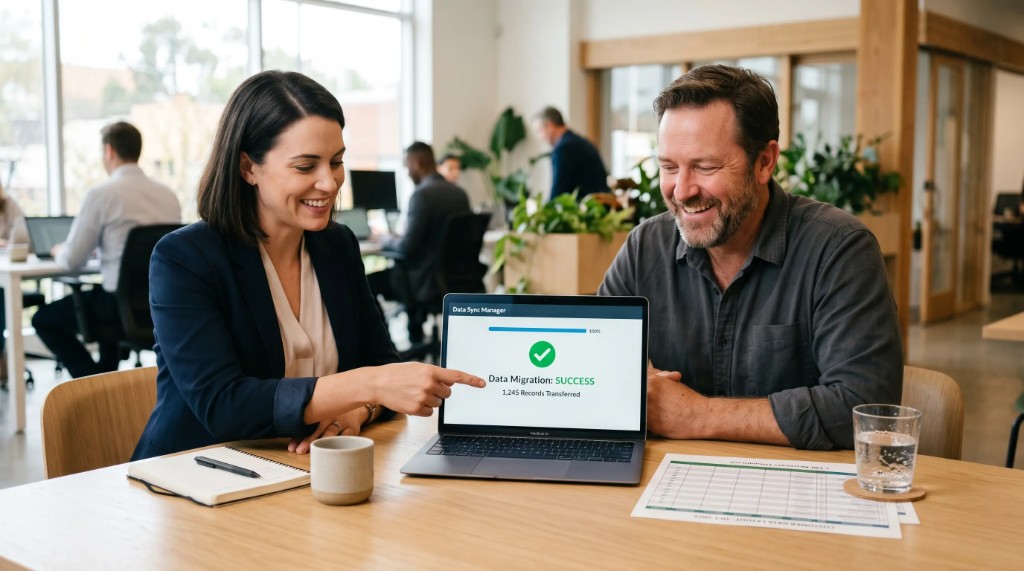
The biggest pain when switching tools in a salon or barbershop is not learning the new platform—it is fear of losing the client database.
Manually copying hundreds of names, phones, birthdays, and histories is so overwhelming many owners stay on inefficient software or old spreadsheets.
Your contacts are the heart of billing; leaving them behind is not an option.
Modern systems allow bulk digital transfer in minutes when files are prepared correctly.
Here is a technical guide to migrate from Excel or legacy software without losing a single phone number.
The 3 most common database format errors (and how to fix them)
Before uploading any list to a new platform, audit your file. Databases fail on these errors:
- Names stuck in one cell: exports like "JuanCarlosPerez" without spaces or with odd characters break import in the new system.
- Variable phone formats: records with +57, spaces (310 123 4567), or landlines break automatic messaging logic.
- Duplicates from multiple entries: same client as "Alejandro", "Alejo", or with a different phone number.
Technical steps to prepare your migration file
Follow this standard procedure to clean your data before bulk import:
- Export previous report
- Convert to .CSV format
- Remove empty rows and duplicates
- Upload to new management system
1. Export in CSV or standard Excel format
In your old platform settings find "Export Clients" or "Database Report". Download as .xlsx or ideally .csv (comma-separated values), the universal server format.
2. Organize a clean column structure
Each data type should use its own column with a clear header in row one. The ideal structure systems process is shown in the example table below.
3. Use remove duplicates
In Excel or Google Sheets, select the list, go to Data → Remove Duplicates. Use the "Mobile Phone" column as main criteria to delete repeated rows instantly.
Skip technical stress: GlowSaaS migrates for you
While international platforms ship English manuals and leave you fixing format errors, GlowSaaS offers human onboarding for busy owners:
- 100% free assisted migration: no Excel formulas or .CSV fights. Hand your file to your advisor and our engineers structure and load everything.
- Full inventory and product transfer: we move clients, retail products, backbar supplies, and your team with commission percentages.
- WhatsApp number verification: we validate Colombian phones so automatic reminders work from day one without bounces.
Frequently asked questions about system migration
What if my current software won’t export my clients?
Some rigid programs hide export. Our team guides you to extract data legally via alternate reports or structured captures so you do not lose your work.
How long does GlowSaaS data migration take?
With your Excel or prior report, cleanup, validation, and bulk load take 24–48 business hours so you can open your new digital calendar without operational trauma.
Can I import technical notes or color history for clients?
Yes. The system loads notes and observations on each user profile so stylists keep dye formulas and aesthetic preferences for loyal clients.
Move to better technology without admin fear
Fear of tech problems cannot keep your barbershop or beauty salon stuck or overpaying.
Rely on an ally team that does the heavy lifting and enjoy full control of your business.